Edge AI SDK/User Guide 300 windows
Contents
Installation
NOTE:
- Go into Folder 1:
 - Internet connection required.
 - Run install.bat (with administrator privileges).
 - System will need reboot after installation.
- Go into Folder 2:
- Run install.bat (with administrator privileges)
Uninstall
1. cd "C:\Program Files\Advantech\EdgeAI"
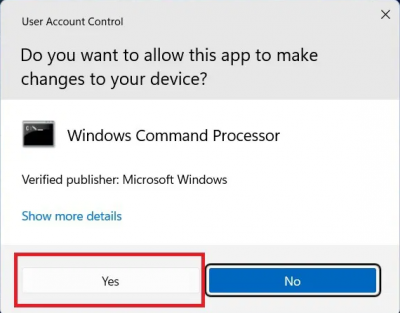
2. unInstall.bat
3. To select "Yes"

Quick Guide
Edge AI SDK caters to users who are comfortable with the machine learning (ML) experience. It can quickly evaluate computing performance for the CPU or GPU, or NPU,and provides runtime results inferenced with ML.
Dduble click the icon ( Edge AI SDK - shortcut ) on the Destop to start the Edge AI SDK App.

Then press the Agree button to proceed.

How to Quickly Start Vision AI
Step 1. Go to the “Quick Start (Vision AI)” page, as shown below.

Step 2. Choose one application you want to activate and then confirm inference info, as shown below.
( 1. Object detection, 2. Face detection )

Step 3. Choose your video source which could be video clips or the USB Camera, as shown below.
Video ( Note: .MP4 only )

or USB Camera

Step 4. Choose one of the acceleration chipsets to execute selected inference application, as shown below.
( Note: The available accelerator chipsets depend on your AI system and accelerator card. )

Step 5. Another window will pop up to show the AI inference, as shown below.

Object Detection
Object Detection is a computer vision task in which the goal is to detect and locate objects of interest in an image or video. The task involves identifying the position and boundaries of objects in an image, and classifying the objects into different categories. It forms a crucial part of vision recognition, alongside image classification and retrieval.
Face Detection
Facial Detection is the task of making a positive identification of a face in a photo or video image against a pre-existing database of faces. It begins with detection - distinguishing human faces from other objects in the image - and then works on identification of those detected faces.

How to Quickly Start GenAI
Step 1. Go to the “Quick Start (GenAI)” and choose application (chatbot)page, as shown below.

Step 2. Choose (General) to execute selected chatbot application, as shown below.

Step 3. Another window will pop up to show the chatbot , as shown below.

Monitor AI System Performance
Go to the “System Monitoring” page. This page shows payload and temperature for each chipset, as shown below.

Evaluate the Benchmark Performance
Go to the “System Monitoring” page and select Visoin. Click the “Run” button to evaluate each chipset performance and wait for a few seconds to get FPS results, as shown below.
